
You can add additional accounts to an active case if the form list requires third-party involvement (e.g., dependents, co-sponsors, etc.). Follow the steps below to grant access and assign tasks.
Step 1. Grant access to a specific case
To allow a new participant (or a new HR member) to view the To-Do list and upload documents:
Open the Case: Navigate to the specific case in NEUTRINET.
Add Account: Locate the Accessible Accounts section and click the [+] button.
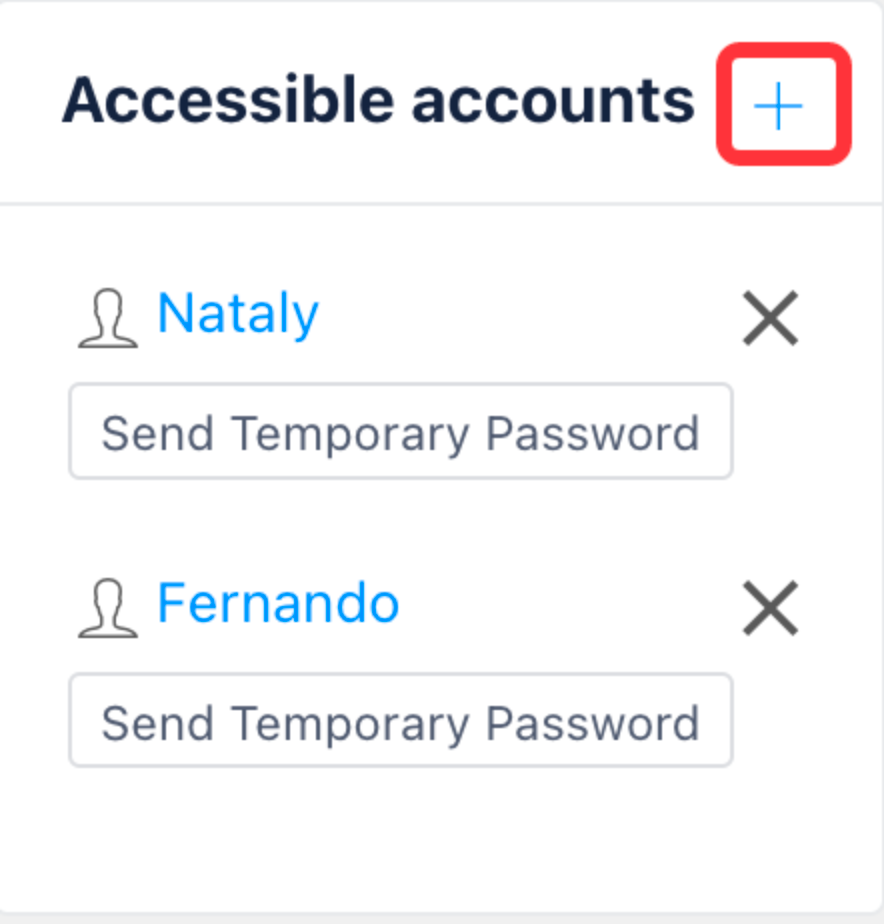
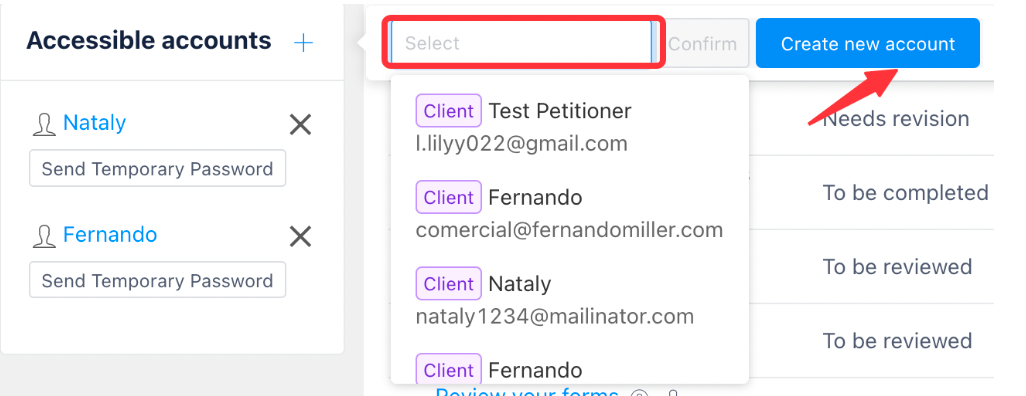
Select or Create: * Choose an existing account from the dropdown menu.
Or, click Create New if the participant is not yet in the system.
4. Assign Roles: Once you invite a new participant, a role assignment window will appear automatically.
For Beneficiaries or Petitioners: Select their role in the pop-up for quick setup.
For Third Parties: Click Skip instead.
[!IMPORTANT] This pop-up only appears once (when the participant is first invited). If you close it, you must assign roles manually via Individual Worksheet Assign or Bulk Task Assign.
5. Send Credentials: Click the Send Temporary Password icon to trigger an automated email with their login credentials to finale the assignment
Comments
0 comments
Please sign in to leave a comment.